

MetaTrader 4 remains one of the most widely used platforms for forex traders seeking reliable automation. Dashboard MyFXBook EA V1.0 MT4 builds on this popularity by integrating seamlessly with Myfxbook, a leading trade analytics service, to offer a comprehensive trading dashboard. This expert advisor empowers traders to monitor performance metrics, manage risk parameters, and execute strategies with minimal manual intervention. In this article, we explore the features, setup process, risk management capabilities, and best practices for maximizing the potential of Dashboard MyFXBook EA V1.0 MT4.
Understanding Dashboard MyFXBook EA V1.0 MT4
Dashboard MyFXBook EA V1.0 MT4 is an automated trading system designed to run on the MetaTrader 4 platform. It utilizes the Myfxbook API to fetch real‑time account statistics, including balance, equity, drawdown, and trade history. Traders benefit from a unified dashboard that displays key performance indicators in one place. The EA also supports customizable entry and exit rules based on user‑defined technical indicators and price action signals. By centralizing analytics and execution, Dashboard MyFXBook EA simplifies decision‑making and supports both novice and experienced traders.
Key Features
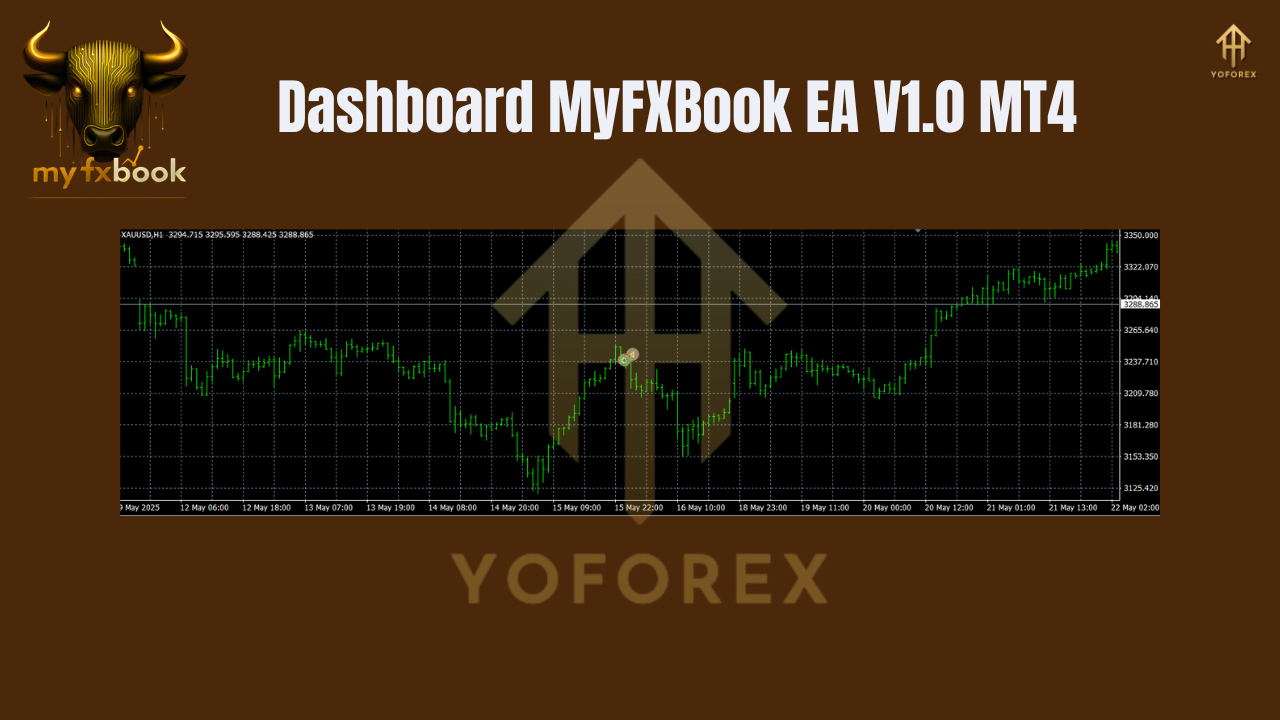
Real‑Time Account Monitoring: Dashboard MyFXBook EA connects to your Myfxbook account via API and retrieves live data. Balance, equity, free margin, and floating profit are displayed on the MT4 chart, allowing quick assessment of account health.
Custom Alerts and Notifications: Traders can configure alerts for threshold breaches such as drawdown limits or margin calls. Alerts can be sent via email or displayed directly on the MT4 terminal.
Automated Trade Execution: The EA supports automated entries and exits based on popular indicators such as moving averages, RSI, and MACD. Traders can enable or disable automation as needed.
Risk Management Dashboard: Stop‑loss, take‑profit, and trailing stop settings can be adjusted from the dashboard without manual order modification. This ensures trades adhere to risk tolerance levels.
Multi‑Symbol Capability: Dashboard MyFXBook EA can manage multiple currency pairs simultaneously. Traders simply attach the EA to each chart and configure unique settings per symbol.
Strategy Customization: Users can define their own trading logic using built‑in parameters or custom indicator signals. The EA interprets these parameters and executes trades accordingly.
Setup and Installation
Download and Installation
- Download the Dashboard MyFXBook EA V1.0 MT4 file and unzip the archive.
- Copy the .ex4 or .mq4 file to the Experts folder in your MetaTrader 4 installation directory.
- Restart MetaTrader 4 to load the new expert advisor.
API Configuration
- Create a Myfxbook account at myfxbook.com and navigate to the API settings page.
- Generate a new API token with read‑only access to account statistics.
- In MT4, open the EA’s inputs and paste the API token into the designated field.
- Enter your Myfxbook account ID and configure update frequency (recommended every 60 seconds).
Chart Attachment and Parameter Settings
-
Open a new chart for each currency pair you wish to trade.
-
Drag Dashboard MyFXBook EA onto the chart and enable “Allow live trading” in the Common tab.
-
Under Inputs, configure risk parameters:
• Risk per trade as a percentage of equity
• Maximum drawdown before stop trading
• Maximum number of open trades -
Set automated entry conditions, choosing among built‑in indicators or custom scripts.
-
Save your settings as a profile for easy reuse across multiple charts.
Risk Management Best Practices
Define Risk Tolerance
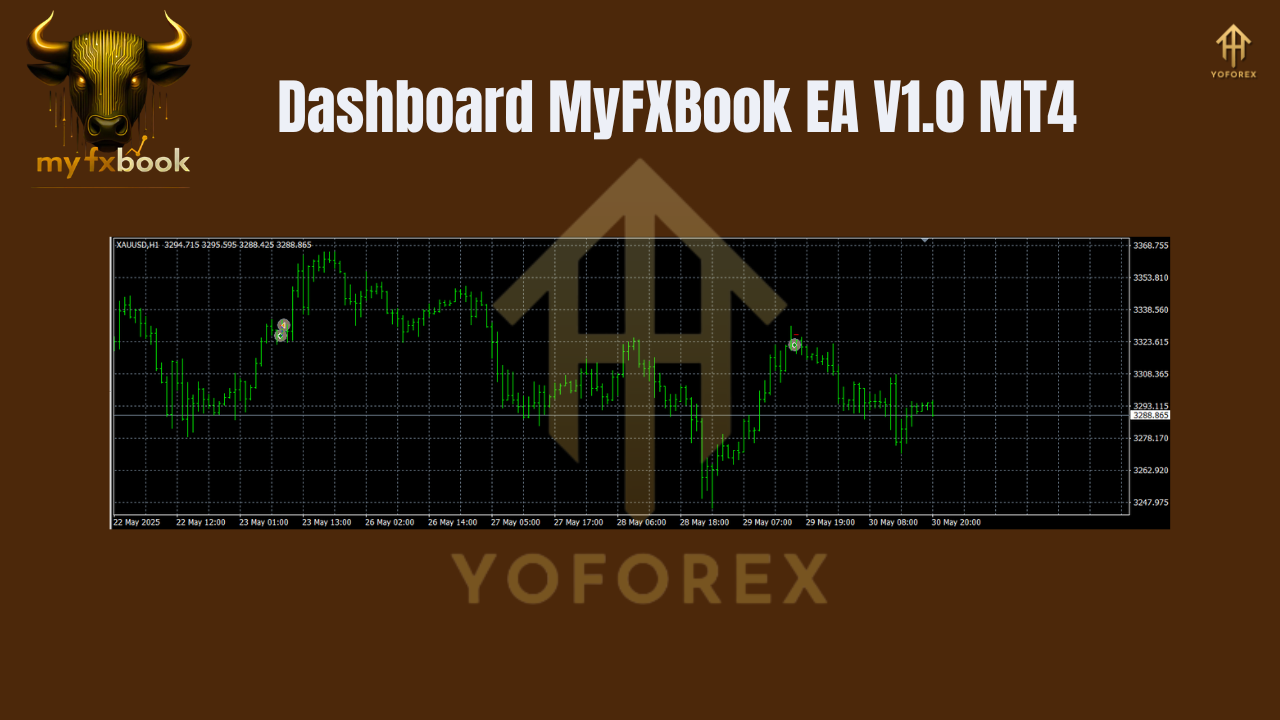
Before deploying any automated system, determine your maximum acceptable drawdown. Dashboard MyFXBook EA allows you to set a hard stop‑loss limit. Once drawdown reaches this level, the EA will disable further trades to protect your capital.
Use Position Sizing
Leverage the EA’s built‑in position sizing module to allocate trade size based on a percentage of account equity. This ensures consistent trade sizing and controls risk relative to account value.
Diversify Across Pairs
While automation provides discipline, holding positions across uncorrelated currency pairs can reduce overall portfolio volatility. Use Dashboard MyFXBook EA to manage several pairs simultaneously, ensuring one losing streak does not wipe out gains elsewhere.
Monitor Drawdown Alerts
Enable email or terminal alerts for drawdown thresholds. Prompt notifications allow you to step in and review performance, adjust parameters, or pause trading until market conditions improve.
Performance Analysis and Optimization
Review Trade History
Myfxbook’s detailed analytics can be accessed directly from the dashboard. Analyze individual trade outcomes, net profit, profit factor, and expectancy to understand the EA’s strengths and weaknesses.
Optimize Inputs
Backtest the EA using historical data in MT4’s Strategy Tester. Experiment with different indicator periods, risk settings, and entry filters. Once optimal parameters are identified, apply them to live trading charts.
Regular Parameter Updates
Markets evolve over time. Schedule periodic reviews (monthly or quarterly) to adjust inputs based on recent performance metrics. Dashboard MyFXBook EA’s dashboard makes parameter tweaks efficient and transparent.
Common Use Cases
Trend Following Strategies
Traders who prefer trend following can configure the EA to use moving average crossovers or ADX filters. The dashboard displays trend strength metrics to confirm market direction before taking positions.
Mean Reversion Approaches
By integrating oscillators such as RSI or Stochastic, the EA can execute mean reversion strategies when price deviates significantly from its average. Alerts for oversold or overbought conditions appear directly on the dashboard.
Grid Trading Setups
For traders employing grid strategies, the EA can place buy and sell orders at fixed intervals. The dashboard tracks the net position and floating profit, enabling real‑time monitoring of grid performance.
Breakout Trading
Set the EA to enter trades when price breaks key support or resistance levels. Dashboard MyFXBook EA highlights breakout zones and executes orders automatically upon confirmation.
Troubleshooting and Support
Connection Issues
If account statistics fail to update, verify your API token and account ID. Ensure MT4 has internet access and that your firewall or antivirus is not blocking data retrieval.
Execution Errors
Check the Experts and Journal tabs in MT4 for error messages. Common issues include invalid input formats or insufficient margin. Adjust settings or free up margin as needed.
Performance Lags
Fetching data too frequently can strain system resources. Increase the update interval to 60–120 seconds to reduce CPU usage while maintaining timely updates.
Conclusion
Dashboard MyFXBook EA V1.0 MT4 represents a significant advancement for traders seeking to blend automated execution with comprehensive analytics. By centralizing real‑time performance metrics, risk management tools, and customizable strategies within MetaTrader 4, this EA empowers users to trade confidently and efficiently. Whether implementing trend following, mean reversion, or breakout approaches, the dashboard interface simplifies monitoring and parameter adjustments. As with any automated system, success depends on disciplined risk management, regular performance reviews, and ongoing optimization. With Dashboard MyFXBook EA V1.0 MT4, traders gain the tools needed to navigate dynamic forex markets and pursue consistent profitability.
Join our Telegram for the latest updates and support