


The DAT MACD Indicator for MT4 is a custom technical indicator designed to enhance the trading experience on the MetaTrader 4 platform, one of the most popular platforms for Forex trading. Built upon the foundation of the classic Moving Average Convergence Divergence (MACD) indicator, the DAT MACD offers traders a streamlined and visually intuitive way to identify potential buy and sell signals. This 1400-word blog post dives deep into the DAT MACD Indicator, exploring its features, installation process, trading strategies, advantages, limitations, and practical tips for maximizing its effectiveness in the Forex market.
What is the DAT MACD Indicator?
The DAT MACD Indicator is a free, custom-built tool for MetaTrader 4 that modifies the traditional MACD to provide clear, actionable trading signals. The standard MACD, developed by Gerald Appel in 1979, is a momentum and trend-following indicator that measures the relationship between two exponential moving averages (EMAs) of an asset’s price. It consists of three components:
-
MACD Line: The difference between a 12-period EMA and a 26-period EMA.
-
Signal Line: A 9-period EMA of the MACD Line.
-
Histogram: The difference between the MACD Line and the Signal Line, visually representing momentum.
The DAT MACD Indicator simplifies this framework by plotting two signal lines and adding buy and sell arrows directly on the chart, making it easier for traders to spot entry and exit points. Unlike the default MT4 MACD, which displays the MACD Line as a histogram and uses a simple moving average (SMA) for the Signal Line, the DAT MACD adheres more closely to the traditional MACD formula while enhancing usability with visual cues.
According to sources, the DAT MACD is particularly valued for its ability to detect trend reversals and provide reliable signals in trending markets. It’s available for free download from various reputable Forex indicator websites, such as IndicatorsPot and MT4Collection, and is compatible with any Forex trading system or strategy.
Key Features of the DAT MACD Indicator
The DAT MACD Indicator offers several features that make it a standout tool for Forex traders:
-
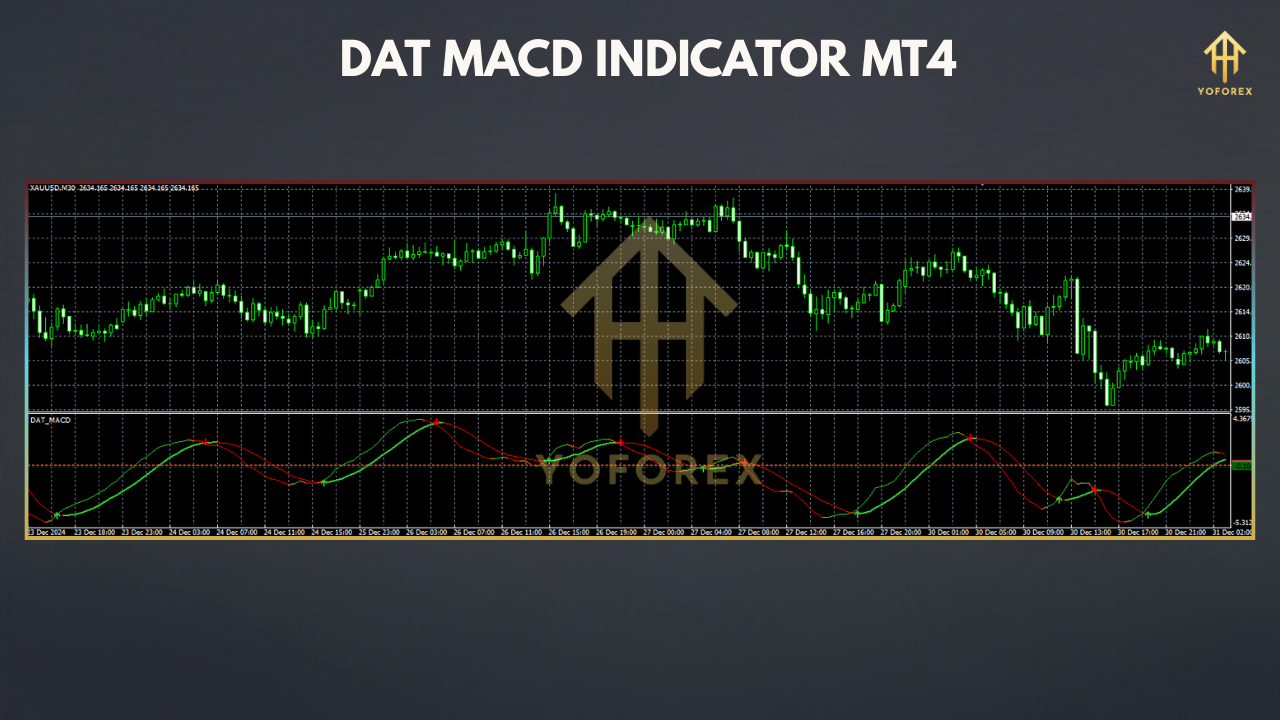
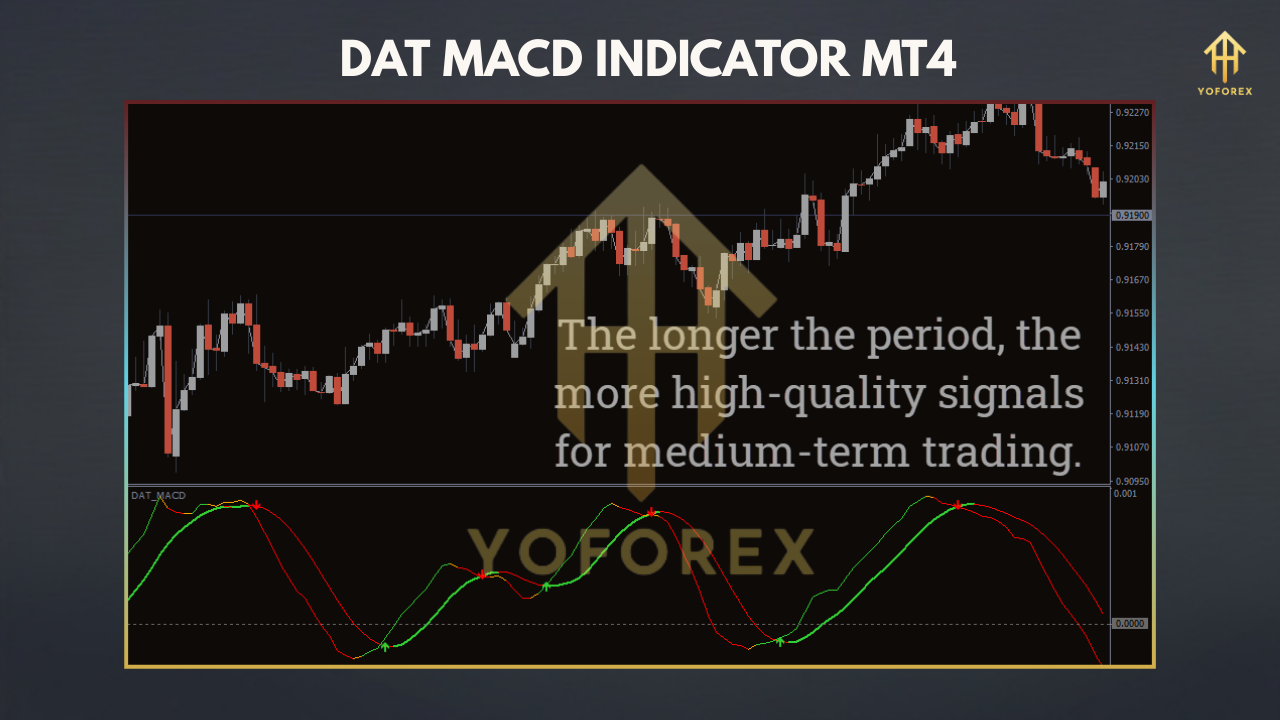
Clear Buy and Sell Signals: The indicator plots green arrows for buy signals and red arrows for sell signals, reducing the guesswork involved in interpreting MACD crossovers.
-
Customizable Parameters: Traders can adjust the MACD periods (e.g., fast EMA, slow EMA, and signal line) to suit their trading style or market conditions.
-
Separate Chart Window: The indicator appears in a dedicated window below the price chart, displaying two signal lines alongside the arrows, ensuring a clean and uncluttered view.
-
Non-Repainting Signals: The DAT MACD does not repaint, meaning once a signal is generated, it remains fixed, providing reliable historical data for backtesting.
-
Versatility: It works across all currency pairs and timeframes, making it suitable for scalping, day trading, and swing trading.
-
Compatibility: Designed specifically for MT4, it integrates seamlessly with other MT4 tools and can be used to confirm signals from other indicators or strategies.
These features make the DAT MACD an accessible and powerful tool for traders of all experience levels.
How to Install the DAT MACD Indicator on MT4
Installing the DAT MACD Indicator on MetaTrader 4 is straightforward. Follow these steps:
-
Download the Indicator: Obtain the DAT MACD file (typically in .mq4 or .ex4 format) from a trusted source, such as www.indicatorspot.com, www.mt4collection.com, or www.best-metatrader-indicators.com. Ensure the file is safe by scanning it with antivirus software.
-
Open MT4 Data Folder: Launch MetaTrader 4, go to the File menu, and select Open Data Folder.
-
Navigate to Indicators Folder: In the data folder, open the MQL4 folder, then the Indicators subfolder.
-
Copy the Indicator File: Paste the downloaded .mq4 or .ex4 file into the Indicators folder.
-
Restart MT4: Close and reopen MetaTrader 4 to refresh the indicator list.
-
Add to Chart: Open the Navigator panel (Ctrl+N), locate the DAT MACD Indicator under the Indicators section, and drag it onto your desired chart. Alternatively, right-click the chart, select Indicators List, and add the DAT MACD.
-
Configure Settings: A settings window will appear, allowing you to customize parameters like the fast EMA (default: 12), slow EMA (default: 26), and signal line (default: 9). Adjust colors or arrow sizes if needed, then click OK.
The indicator will now appear in a separate window below your chart, ready to generate signals.
How the DAT MACD Indicator Works
The DAT MACD Indicator operates by analyzing the momentum and trend direction of price movements. It calculates the difference between a fast EMA (12-period) and a slow EMA (26-period) to form the MACD Line. The Signal Line, a 9-period EMA of the MACD Line, is plotted alongside it. The indicator generates signals based on crossovers and the relative positions of these lines:
-
Buy Signal: A green arrow appears when the MACD Line crosses above the Signal Line, indicating bullish momentum and a potential buying opportunity.
-
Sell Signal: A red arrow appears when the MACD Line crosses below the Signal Line, signaling bearish momentum and a potential selling opportunity.
The arrows are plotted directly on the price chart, making it easy to identify entry points. The indicator’s separate window also shows the two lines, allowing traders to monitor momentum and confirm signals visually. The DAT MACD excels in trending markets but may produce false signals in choppy or consolidating conditions, so confirmation with other tools is recommended.
Trading Strategies Using the DAT MACD Indicator
The DAT MACD Indicator can be incorporated into various trading strategies. Below are two practical approaches:
1. Trend-Following Strategy with Confirmation
This strategy uses the DAT MACD to enter trades in the direction of the prevailing trend, with additional confirmation to filter out false signals.
-
Timeframe: H1 (1-hour) or H4 (4-hour) for reduced noise.
-
Currency Pair: Major pairs like EUR/USD or USD/JPY for liquidity.
-
Setup:
-
Identify the overall trend using a 200-period EMA. If the price is above the EMA, focus on buy signals; if below, focus on sell signals.
-
Wait for a DAT MACD signal: a green arrow for a buy or a red arrow for a sell.
-
Confirm the signal with a secondary indicator, such as:
-
RSI: Ensure RSI is above 50 for buy signals or below 50 for sell signals.
-
Support/Resistance: Verify the signal aligns with a key level.
-
-
Enter the trade only if all criteria are met.
-
-
Entry: Place a buy or sell order after the signal candle closes.
-
Stop Loss: Set the stop loss below the recent swing low (for buys) or above the swing high (for sells).
-
Take Profit: Aim for a 1:2 risk-reward ratio or target the next significant support/resistance level.
-
Example: On EUR/USD H1, the price is above the 200-EMA, and a green arrow appears at 1.2000. RSI is at 55, and the price is near a support level. Enter a buy with a stop loss at 1.1970 and a take profit at 1.2060.
2. Scalping Strategy for Short-Term Trades
This strategy leverages the DAT MACD for quick, short-term trades on lower timeframes.
-
Timeframe: M5 (5-minute) or M15 (15-minute).
-
Currency Pair: Volatile pairs like GBP/USD or AUD/USD.
-
Setup:
-
Apply the DAT MACD and a 20-period EMA to the chart.
-
Wait for a DAT MACD signal (green arrow for buy, red arrow for sell).
-
Confirm the signal by ensuring the price is above the 20-EMA for buys or below it for sells.
-
Enter the trade on the next candle.
-
-
Entry: Buy or sell based on the arrow’s direction.
-
Stop Loss: Place a tight stop loss (e.g., 5-10 pips) above/below the signal candle.
-
Take Profit: Target 10-15 pips or exit at a minor support/resistance level.
-
Example: On GBP/USD M5, a red arrow appears at 1.3500, and the price is below the 20-EMA. Enter a sell with a stop loss at 1.3510 and a take profit at 1.3485.
Advantages of the DAT MACD Indicator
-
User-Friendly: The arrow-based signals simplify decision-making, especially for beginners.
-
Free and Accessible: Available at no cost from multiple trusted sources.
-
Non-Repainting: Reliable for backtesting and live trading.
-
Versatile: Suitable for various trading styles and market conditions.
-
Enhanced Visualization: Combines the traditional MACD with intuitive arrows, improving usability.
Limitations and Risks
-
False Signals in Ranging Markets: The DAT MACD may generate unreliable signals during consolidation phases, as MACD is a lagging indicator.
-
Requires Confirmation: Relying solely on the indicator can lead to losses; confirmation with other tools is essential.
-
Parameter Sensitivity: Default settings may not suit all markets, requiring optimization.
-
Market Dependency: Performs best in trending markets and may underperform in low-volatility conditions.
Practical Tips for Using the DAT MACD Indicator
-
Test on a Demo Account: Practice with the indicator on a demo account to understand its behavior and optimize settings before trading live.
-
Combine with Other Indicators: Use tools like RSI, Bollinger Bands, or support/resistance levels to confirm DAT MACD signals.
-
Optimize for Timeframes: Adjust MACD periods for different timeframes (e.g., shorter periods for scalping, longer for swing trading).
-
Focus on High-Volatility Sessions: The indicator performs best during the London and U.S. trading sessions, as noted by sources.
-
Implement Risk Management: Use stop losses and maintain a risk-reward ratio of at least 1:2 to protect your capital.
-
Stay Updated: Check for updates to the indicator on platforms like MQL5 or Forex forums, as newer versions may improve performance.
Conclusion
The DAT MACD Indicator for MT4 is a valuable tool for Forex traders seeking to simplify and enhance their trading strategies. By building on the classic MACD framework and adding clear buy and sell arrows, it offers an intuitive way to identify potential entry and exit points. Its versatility, non-repainting nature, and compatibility with all currency pairs make it suitable for traders of all levels, from scalpers to swing traders.
However, like any technical indicator, the DAT MACD is not infallible. It performs best in trending markets and requires confirmation from other tools to minimize false signals. By testing it thoroughly on a demo account, combining it with complementary indicators, and adhering to disciplined risk management, traders can unlock the full potential of the DAT MACD Indicator.
Whether you’re a beginner looking for an easy-to-use tool or an experienced trader seeking to refine your strategy, the DAT MACD Indicator is a worthy addition to your MT4 toolkit. Download it from a trusted source, experiment with its settings, and start exploring its capabilities in the dynamic world of Forex trading.